
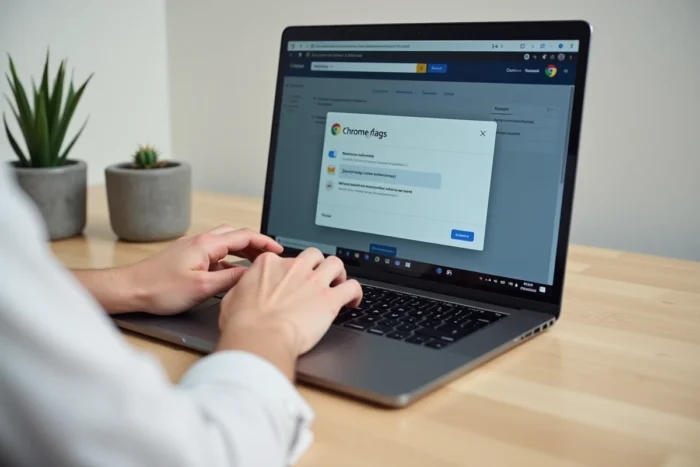
You use Chrome every day, but part of the browser remains intentionally hidden. Behind the address chrome://flags, Google stores dozens of experimental settings that modify the browser’s behavior before they are even offered to the general public. These options, called Chrome flags, allow you to test features in development, adjust performance, or disable a recent behavior that is causing issues.
Gemini Nano and chrome flags: when a flag downloads a local AI model
Since 2024, some Chrome flags no longer just modify the display or browsing speed. They directly control the download of Gemini Nano, Google’s local artificial intelligence model.
Specifically, enabling the flag optimization-guide-on-device-model triggers the automatic download of a file weighing in at about 4 GB named weights.bin. This file is placed in the Chrome profile folder without a consent window appearing. As long as the flag remains enabled, the file is re-downloaded if it is manually deleted.
A second flag, prompt-api-for-gemini-nano, goes further. It allows the websites you visit to query this AI model directly on your machine. To learn everything about chrome flags and understand these mechanisms, it is important to keep in mind that a simple change in the position of a flag can modify the access scope of sites to your local resources.
Google has confirmed that this toggle has existed since February 2026 and that the model is automatically uninstalled if storage space becomes insufficient. The impact remains real: a flag can consume several gigabytes without any visible action from the user.

Accessing chrome://flags and modifying an experimental setting
Have you noticed that Chrome’s address bar accepts special commands? Type chrome://flags and hit Enter. A page opens with a list of settings, each accompanied by a short description in English and a dropdown menu offering three states: Default, Enabled, Disabled.
Step-by-step method
- Open Chrome, type chrome://flags in the address bar, then press Enter. The page that appears groups all the flags available on your version.
- Use the search bar at the top to filter by flag name (for example, smooth-scrolling or reading-mode). Reading the description before changing anything avoids most unpleasant surprises.
- Toggle a flag to Enabled or Disabled, then click the Relaunch button that appears at the bottom of the page. Chrome restarts and applies the change immediately.
Modify only one flag at a time. If you enable several at once and the browser crashes, identifying the culprit becomes a puzzle. Google explicitly recommends this in its official documentation.
Chrome flags and ad blockers: the end of Manifest V2
Flags are not only used to activate new features. They also allow temporarily extending functionalities that Google removes. The most telling example concerns ad-blocking extensions based on Manifest V2, such as uBlock Origin in its classic version.
For several months, a flag allowed continued use of these extensions despite the enforced migration to Manifest V3. Google is gradually removing these “backup” flags, making it impossible to revert to the old extensions once the flag is removed in an update.
This evolution illustrates a often underestimated point: a flag is never a permanent setting. It can disappear from one version to another without notice. Building your daily browsing around an activated flag is like relying on shifting ground.
Concrete risks and limitations of Chrome flags
The page chrome://flags displays a warning banner as soon as it opens. This is not decorative. Flags are unfinished features, and their activation can cause unexpected behaviors.
What can go wrong
A flag that modifies graphical rendering (GPU acceleration, compositing) can make certain sites unreadable or cause tabs to crash. A poorly configured network flag can slow down page loading or block HTTPS requests. The loss of browsing data remains possible if a flag affects local storage or cookies.
In terms of security, enabling a flag that exposes an experimental API to websites expands the browser’s attack surface. The flag prompt-api-for-gemini-nano mentioned above is a good example: it gives sites access to a local AI model, raising governance and control questions.
How to revert changes
Chrome keeps a “Reset all” button at the top of the chrome://flags page. It resets all flags to Default with one click. This is the first reflex to have if the browser becomes unstable after a change.
Another approach is to download Chrome Beta instead of modifying flags on the stable version. Chrome Beta already incorporates most experimental features in an environment designed to accommodate them, with a feedback channel to Google for reporting bugs.
Chrome flags on mobile: same mechanisms, different constraints
The page chrome://flags also works on Android. Some flags are common to both desktop and mobile, while others are specific to the mobile version of the browser.
On smartphones, the impact of a flag on battery or RAM is felt more quickly. Enabling a graphics acceleration flag on a low-end phone can lead to noticeable slowdowns. Conversely, disabling a page preloading flag can improve battery life on slow connections.
The procedure remains the same: chrome://flags in the address bar, search for the flag, modify, then restart. The Reset all button is also available on mobile in case of issues.
Chrome flags are a real customization lever, provided they are treated for what they are: temporary settings, inherently unstable, that can disappear with the next update. Modifying a flag with knowledge brings real benefits. Doing so blindly exposes you to malfunctions that even Google does not guarantee to fix.